Conversion examples
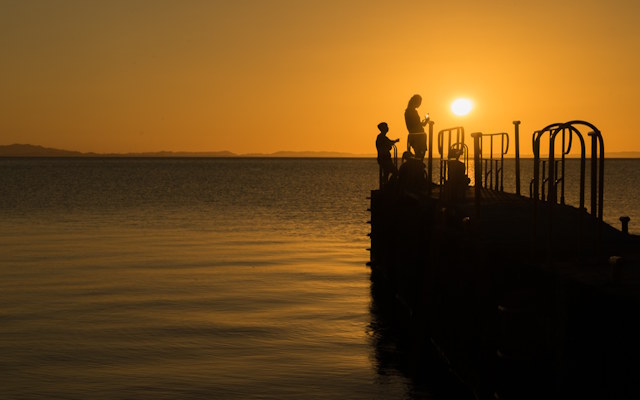
Before
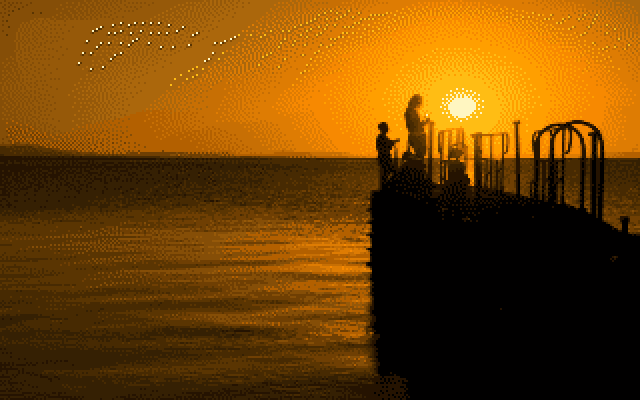
CBM64 converted
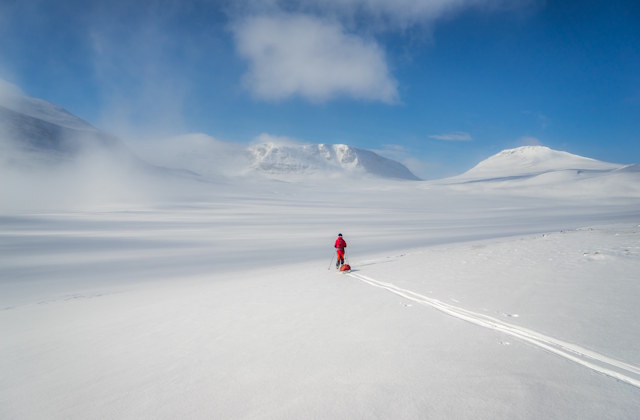
Before
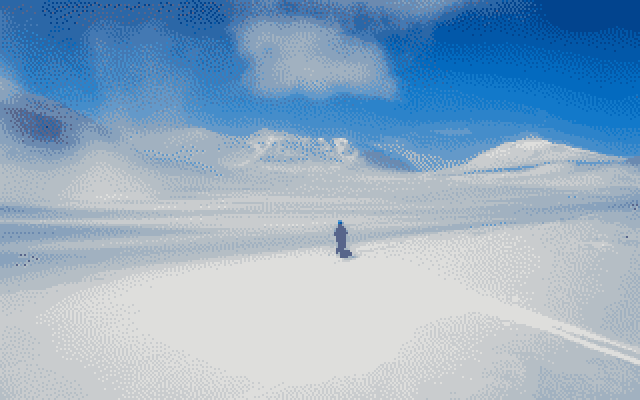
CBM64 converted
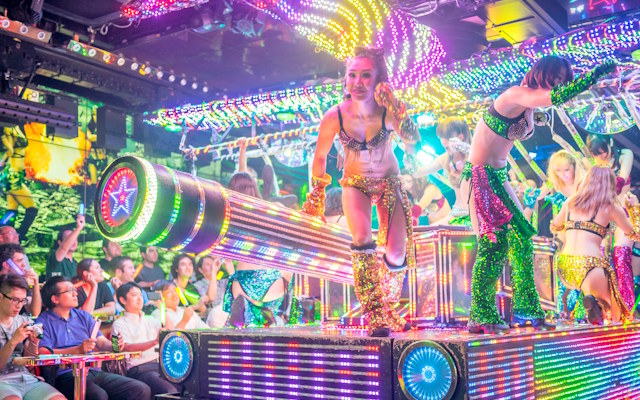
Before
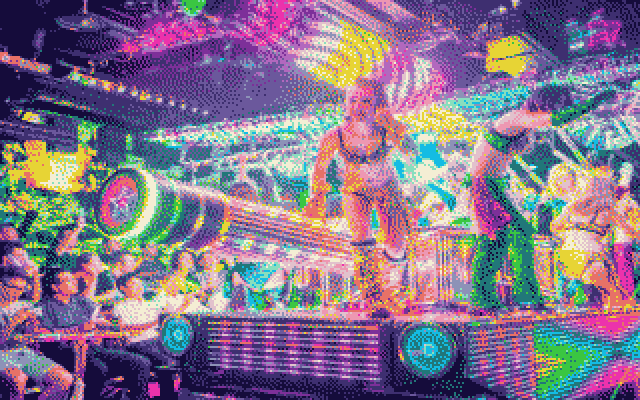
CBM64 converted
Convert photo to authentic Commodore 64 / CBM64 8-bit style using the real VIC-II 16-colour palette.
Open C64 ConverterThe VIC-II chip's 16-colour limit is important, every choice below is about working with that constraint the way C64 software did.
Any image works. Upload whatever you like. For the most authentic result, crop to 4:3 landscape first and turn off "Use image aspect ratio". This is optional and explained below.
| Mode | Best for | Avoid for |
|---|---|---|
| 320×200 | Photos, landscapes, skies — any soft gradient | — |
| Multicolor | Game-art style images, medium-contrast subjects | Flat skies, smooth gradients |
| Hires | Portraits, logos, line art — sharp, high-contrast subjects | Soft photo landscapes, hazy skies |
Any image converts fine at any shape. These only matter if you want to match a real C64 screen, which always filled a 4:3 TV:
Dithering creates the illusion of more colours by mixing pixels in patterns that trick the eye into seeing a blend — mixing light blue and white dots to suggest sky blue, for instance. The Commodore 64 itself had no automatic dithering: with the VIC-II chip's strict 16-colour limit, pixel artists placed every dithered dot by hand. The automatic algorithms here (Bayer included) are a modern convenience real C64 software never had, commonly used by retro converters to approximate that hand-placed look. Read more about the VIC-II 16-colour palette.
Hires and Multicolour apply the real VIC-II per-cell colour limit; Standard renders the same 320×200 resolution without it, so it's the better pick for continuous-tone photos where the cell constraint would just look blocky.
Open C64 Converter