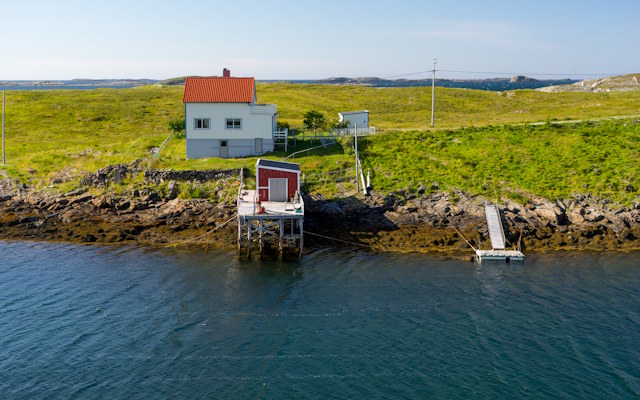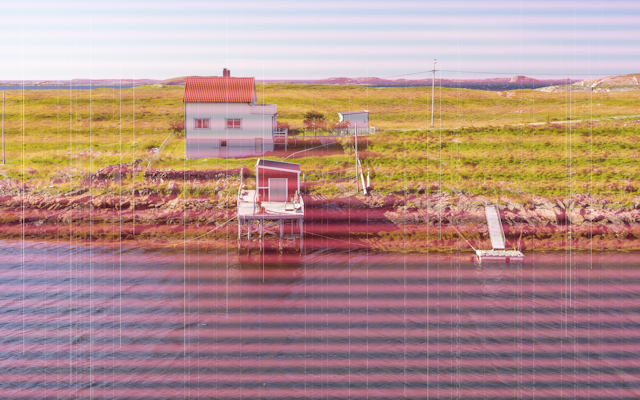
Before
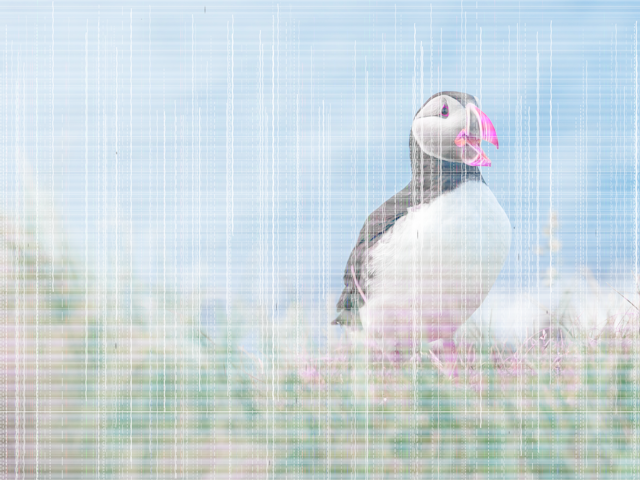
Low ink converted
Free · in-browser · no upload
Recreate the faded, toner-starved look of a printer that should have been replaced three print jobs ago. Great for zine and risograph aesthetics, distressed poster art, or studying how ink depletion degrades an image. Every slider explained below, with tips for a believable result.
Open Low Ink Converter
A believable result comes from layering a few subtle defects rather than maxing one slider. Start from a mode, set the overall fade, then add mechanical faults one at a time:
Everything above happens entirely inside your browser. There is no upload, no server processing and no account. Your photo never leaves your device.
Open Low Ink ConverterA colour printer builds every tone from four inks: cyan, magenta, yellow and black (CMYK). Each colour is laid down by its own cartridge or toner supply. As one runs low, that channel prints thinner while the others stay strong, so the whole image shifts toward the complementary colour. A failing cyan cartridge makes everything look warm and red; a failing yellow one turns skin and skies cold and blue.
Inkjet and laser printers fail differently. An inkjet pushes ink through hundreds of microscopic nozzles; when some clog or the supply drops, you get thin vertical streaks where those nozzles stopped firing, often ragged and intermittent. A laser printer drags toner across the page with a rotating drum and fuses it with heat; as toner runs out or the drum wears, you get horizontal bands of pale or missing print, repeating down the page at the drum's circumference.
On top of that, low overall coverage makes solid blacks turn grey, fine detail drops out entirely in the lightest areas, and cheap or slightly damp paper lets what ink there is spread and soften at the edges. This converter recreates each of those mechanisms as a separate control so you can combine them the way a real, tired printer would.
Try it yourself →Yes. It is completely free, with no account, no sign-up and no watermark on the exported PNG.
No. All processing happens in your browser using an HTML5 canvas. Your image never leaves your device and nothing is sent to a server.
Set that cartridge slider (for example Cyan) to zero or near zero and leave the others high. Or choose the Dying Cartridge ink mode, which drives one channel down for you.
Banding is horizontal: rows of lighter or missing print, typical of laser toner starvation and paper-feed problems. Streaking is vertical: thin lines from partially clogged inkjet nozzles.
Streaks are randomised on each render so they don't look like a repeating filter. Press the Re-Streak button to generate a fresh pattern, and keep pressing until the placement looks right.
Yes. Use moderate depletion, a little banding, and either Black Only mode or drain two of the three colour cartridges for the flat, limited-ink look of cheap duplication.
Open Low Ink Converter